Preview the screens before owning a work
Selecting Own this work expands a confirmation in the same work card. Review the episodes and price before confirming.
These are example screens for episodes 2 and 3 at a total of 20C. The episodes and price vary by work.
From the offer to your library
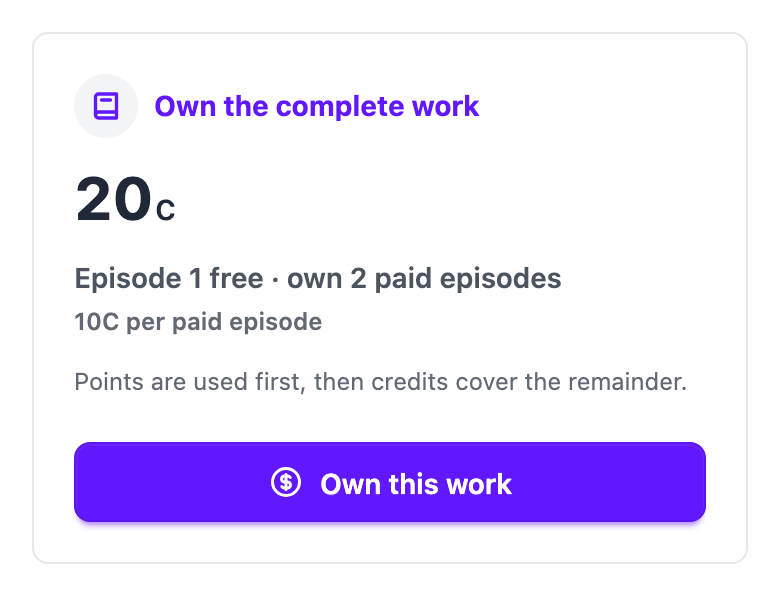
1. Check the work you want to own
Review the price and number of paid episodes, then select Own this work. Your balance has not been deducted yet. If you are signed out, a sign-in prompt opens.
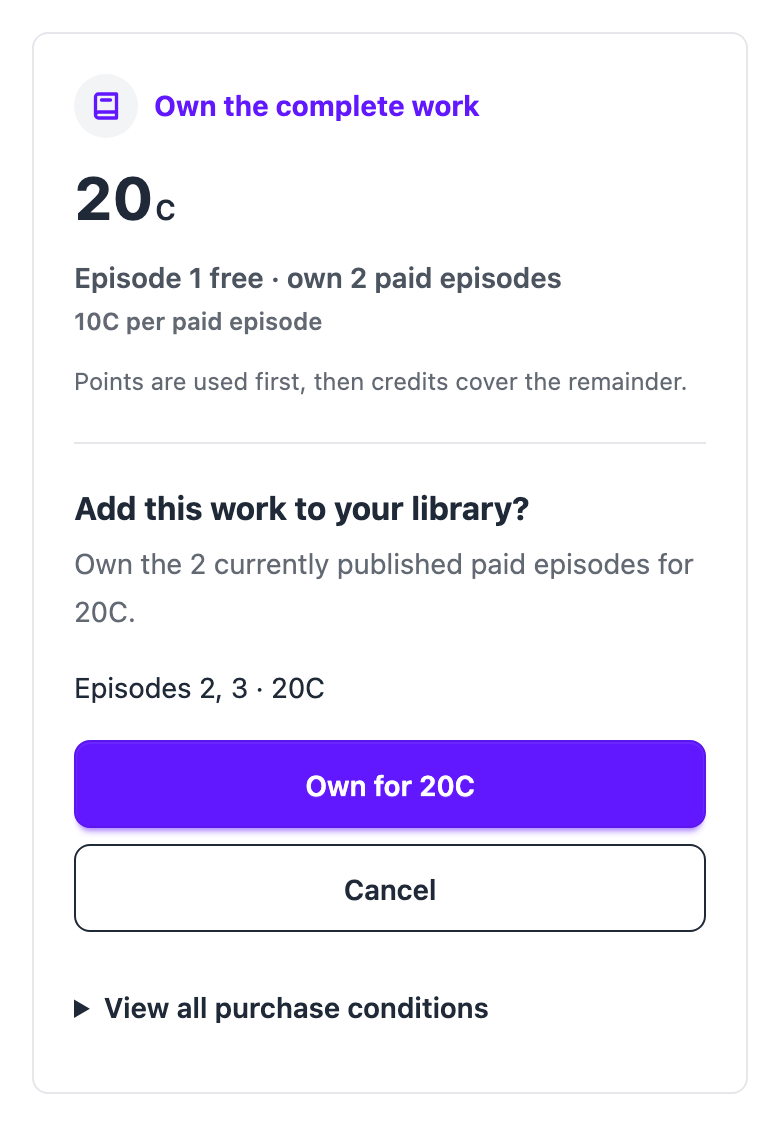
2. Review and confirm
Review the episodes and total under Add this work to your library? Select Own for 20C to proceed, or Cancel to return. Expand View all purchase conditions for the full details.
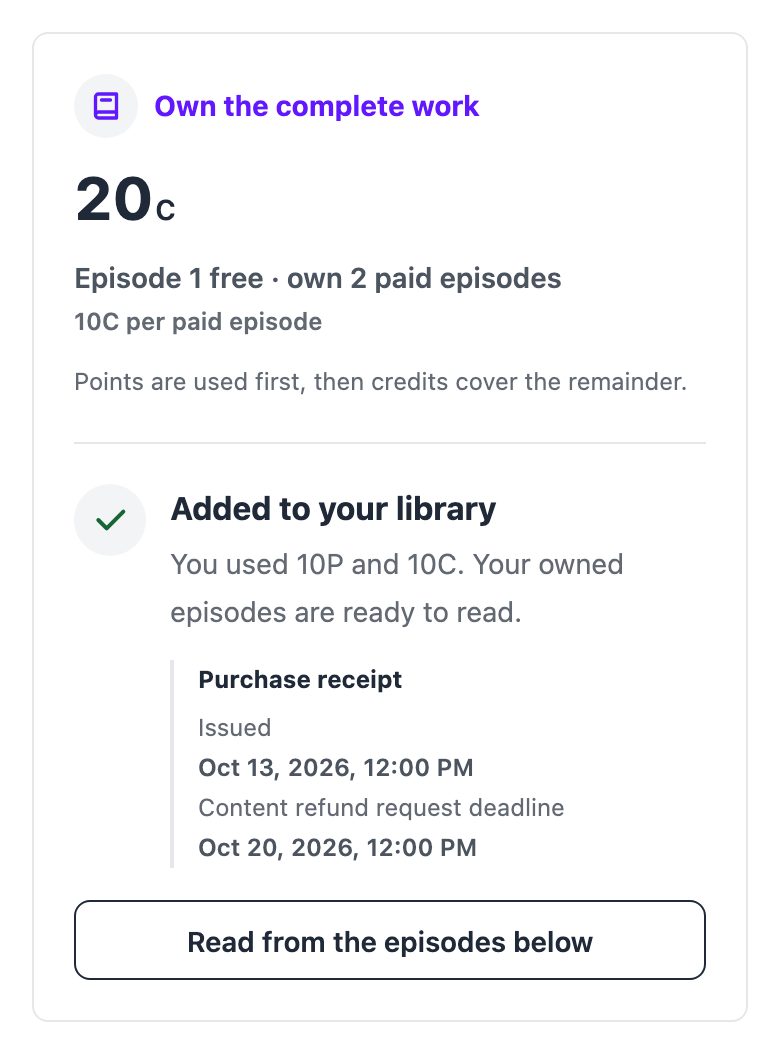
3. Read your owned episodes
Added to your library shows the points and credits used and your purchase receipt. Points are used first, then credits cover the remainder. Your owned episodes are ready to read.
If your balance is too low
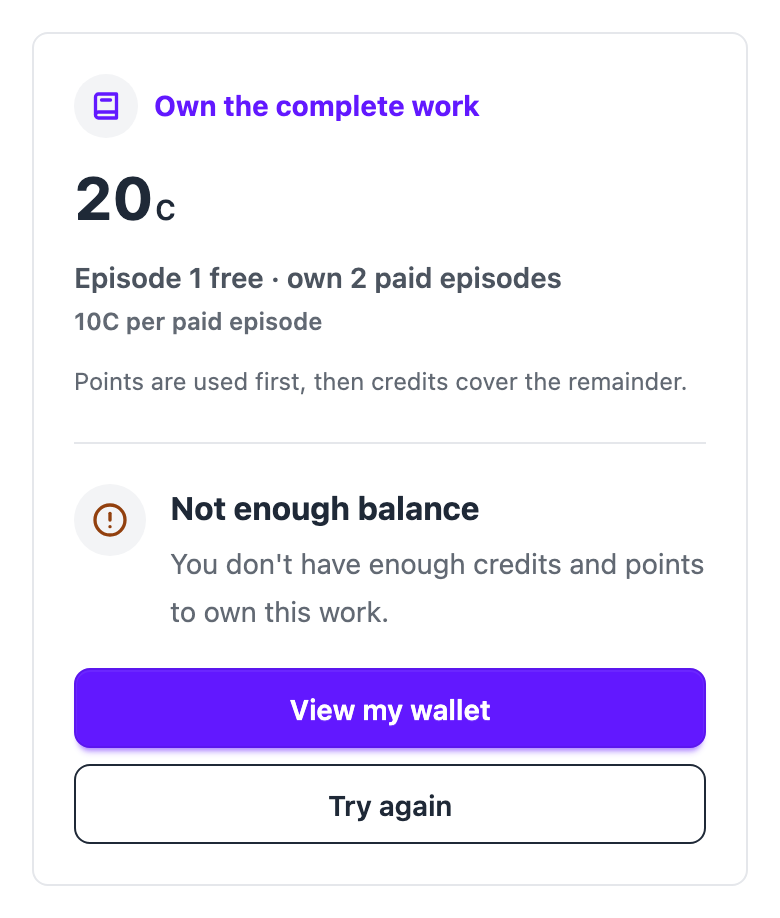
Select View my wallet in the Not enough balance message to top up. Return to the work, review the episodes and price again, and confirm ownership.
Owning a work uses your existing points and credits. The app store purchase confirmation appears when you top up credits. Top-ups are available in the One Minute Go app with a South Korean or US store account.